🚨 Did You Know? 50% of GCCs Hire Without Data.
Read The Report
Call and text applicants and contacts directly from Ceipal ATS, with call activity reported in Ceipal BI.
The Zoom integration lets recruiters call and text applicants and contacts directly from Ceipal ATS, without switching between tools. Zoom Phone handles the voice call, Zoom SMS handles messaging, and Ceipal remains the central platform for managing your recruiting records.
Zoom Phone call activity is fetched through the Zoom Phone API and made available in Ceipal BI reporting, so your team doesn't have to log calls by hand. Zoom SMS supports Applicants, Client Contacts, and Lead Contacts, including file attachments.
You'll need an active Zoom account with Zoom Phone and/or Zoom SMS enabled. Make sure you:
Log in to your Ceipal ATS account and click the profile icon at the top right corner, then go to View Profile → User Preferences.
Under VoIP Provider, select Zoom Phone and click Login.
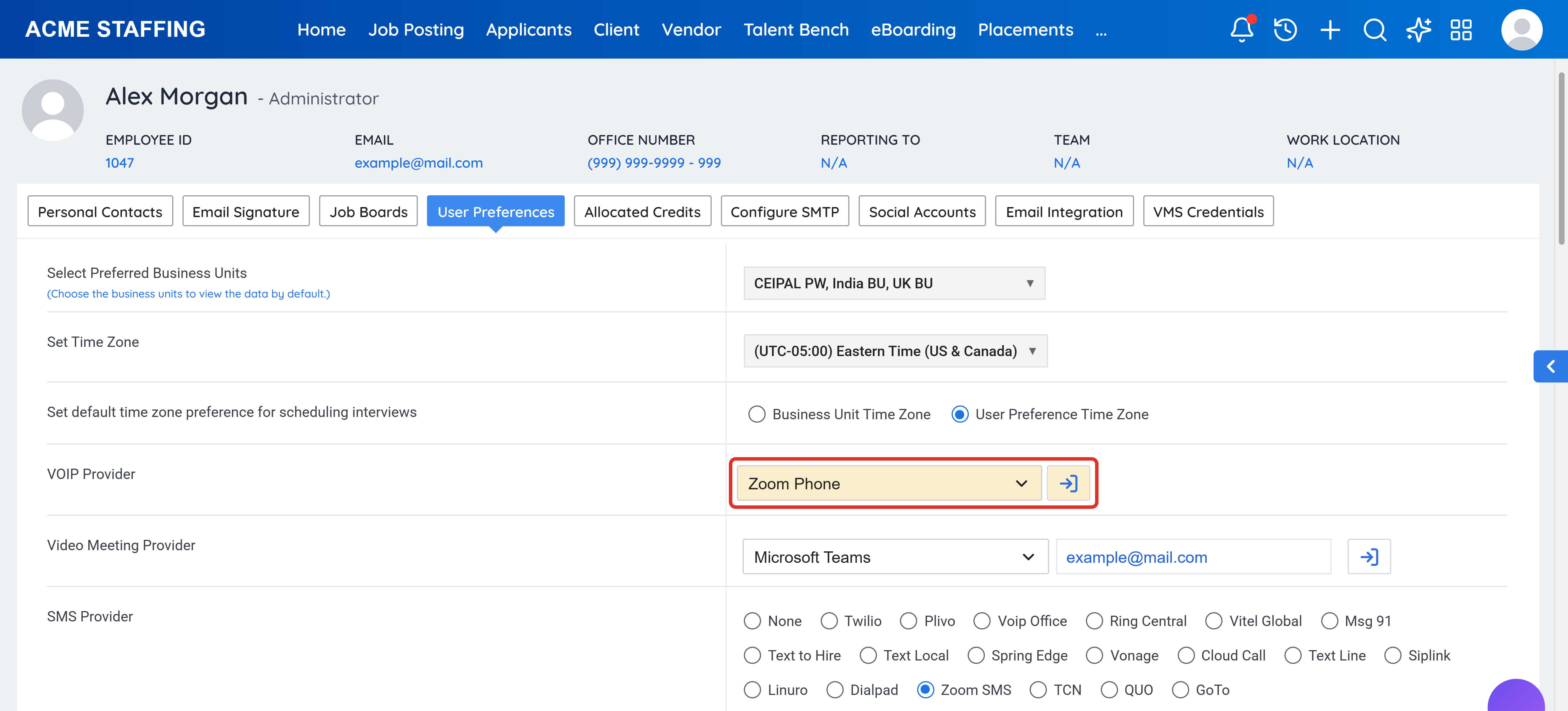
You'll be redirected to Zoom's website, where you'll be asked to log in to Zoom. Sign in to complete the connection.
Go to Setup → Integrations → All Integrations → SMS Integrations.
Search for Zoom and select Setup.
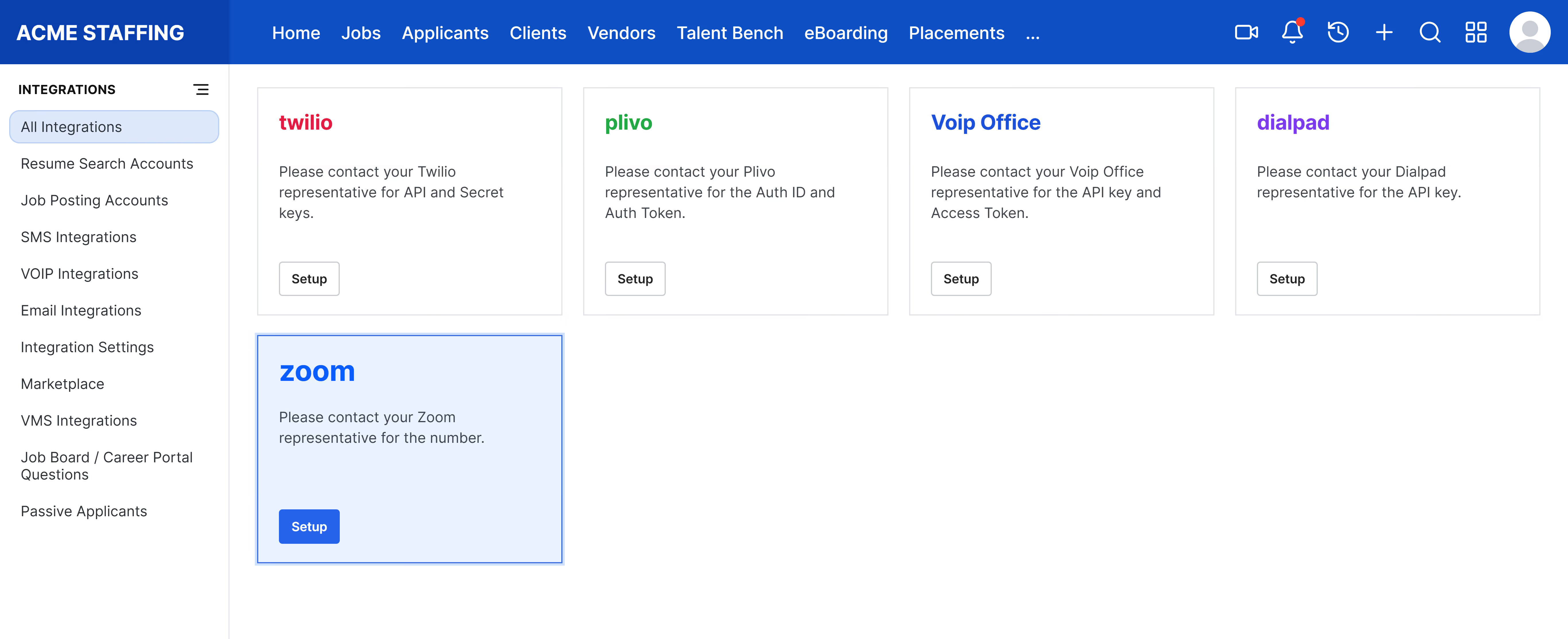
Enter your Zoom number and save. This is the number your team will send SMS from.
Go to View Profile → User Preferences.
Set SMS Provider to Zoom SMS and save.
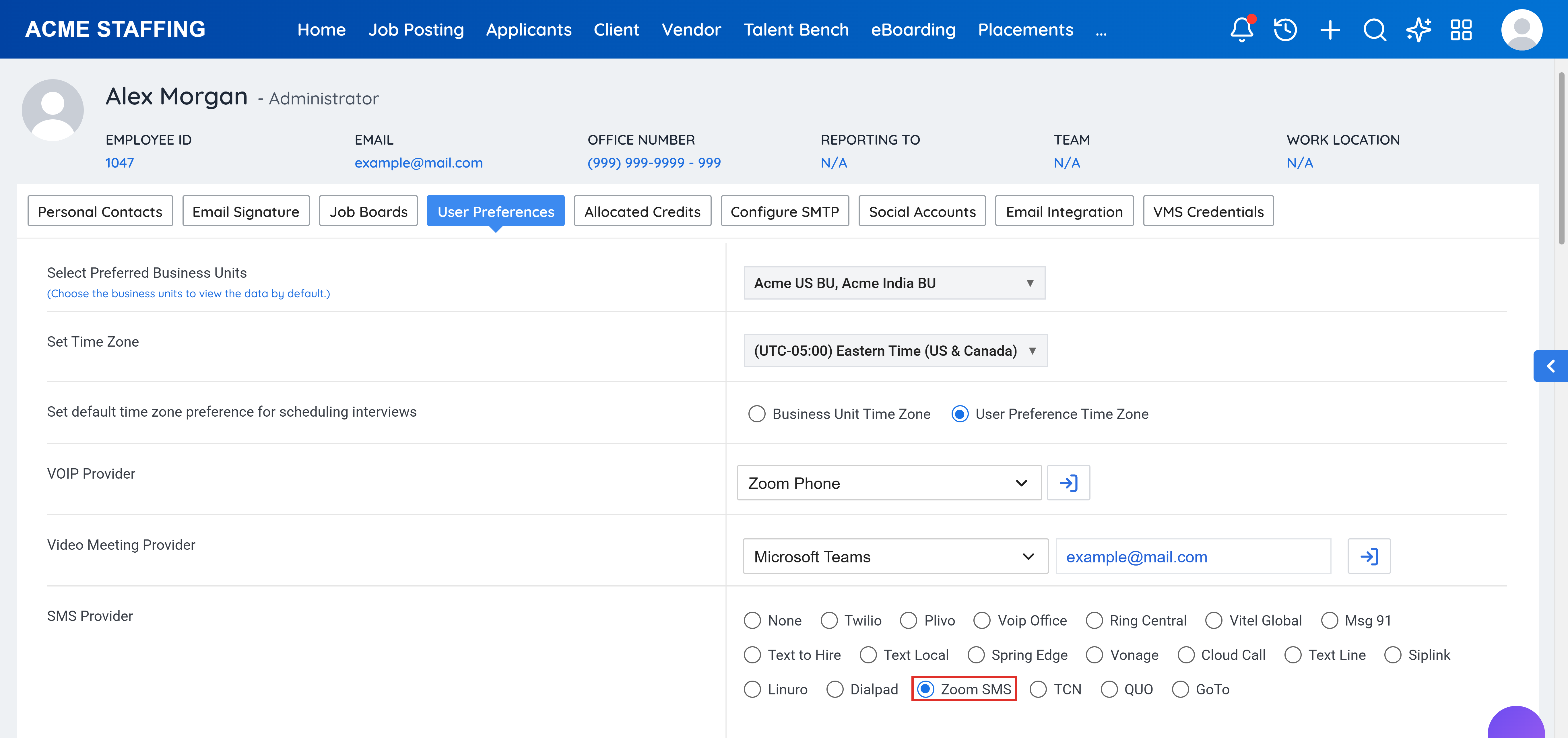
Good to know. Zoom SMS must be configured by an administrator before users can select it as their SMS provider.
Click on the Call icon next to the phone number from the records list to initiate the call through Zoom Phone.
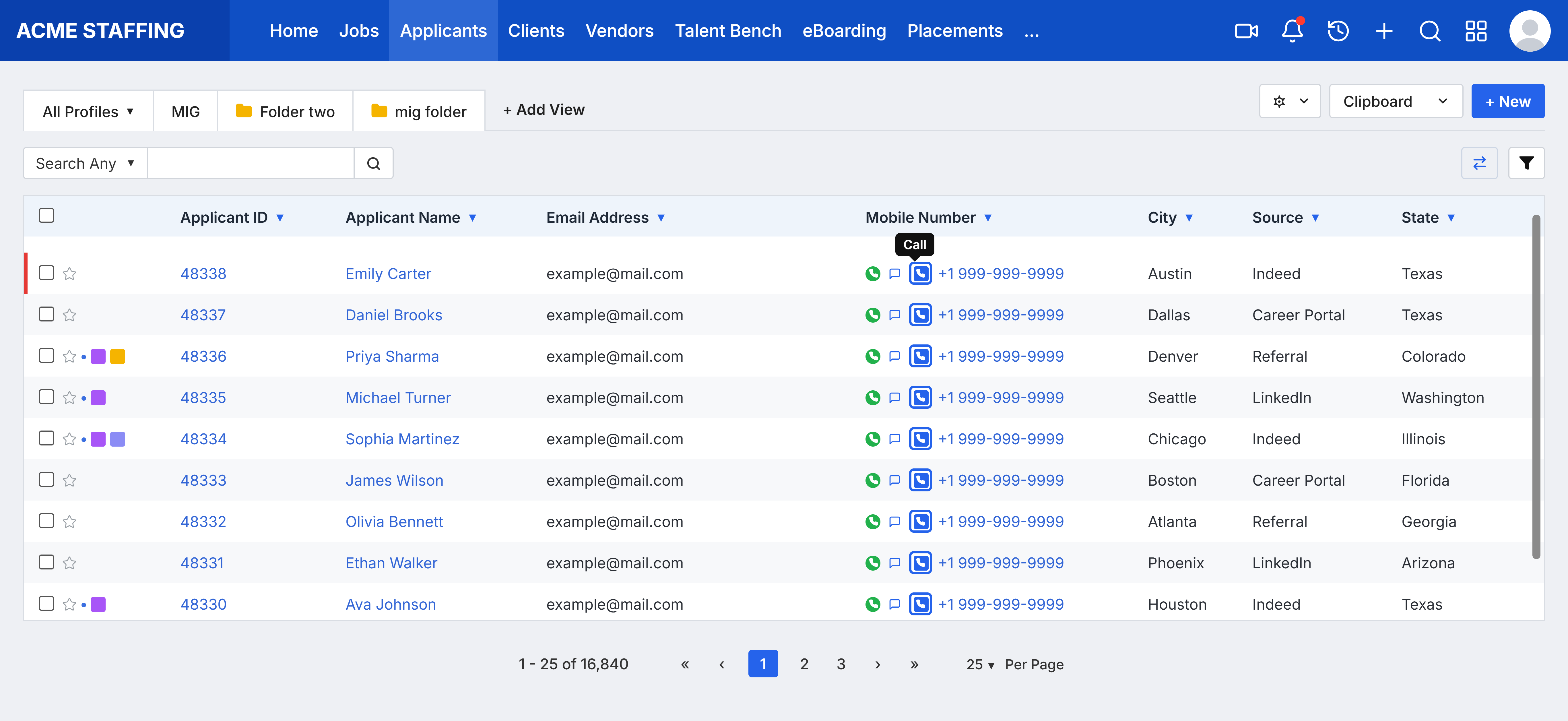
Complete the call using the Zoom Phone calling experience.
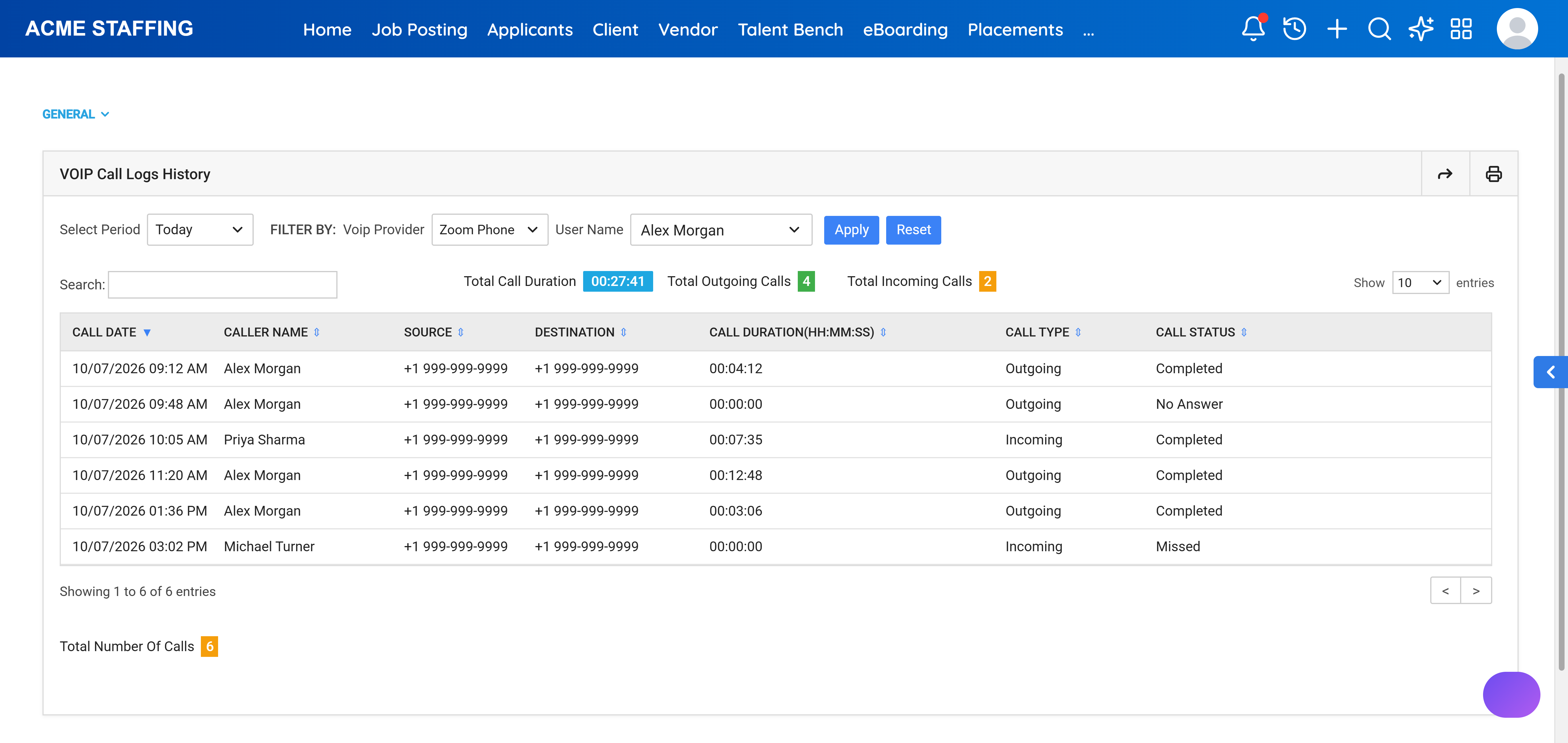
Call details are fetched through the Zoom Phone API and available in the Call Logs report. Where available, each log includes the call date, type, status, duration, and who made the call.
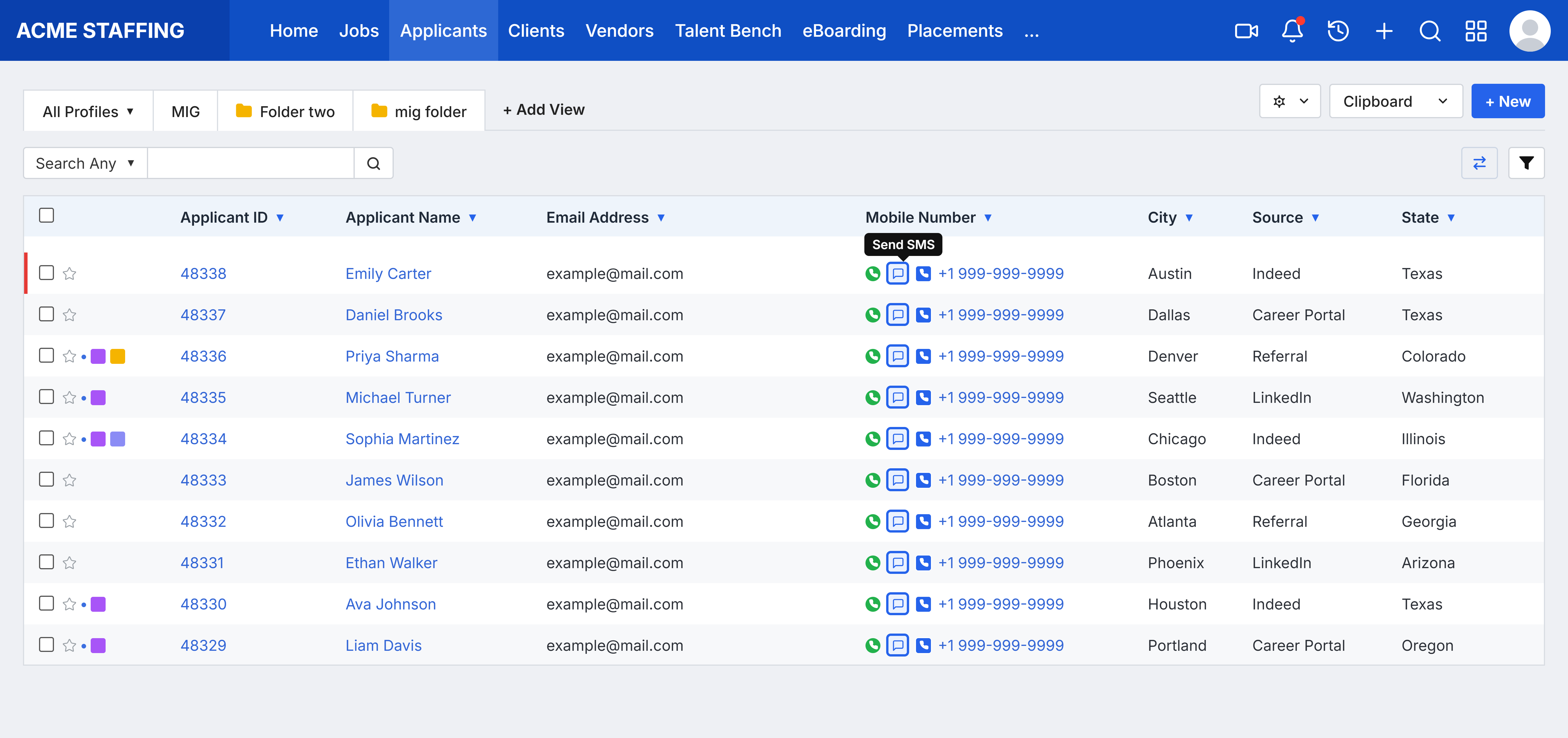
Click on the Text icon next to the phone number from the records list to send the text through Zoom SMS.
When prompted, select Sign In and enter your Zoom credentials to complete Zoom authentication.
Compose your message, attach supported files if needed, and send.
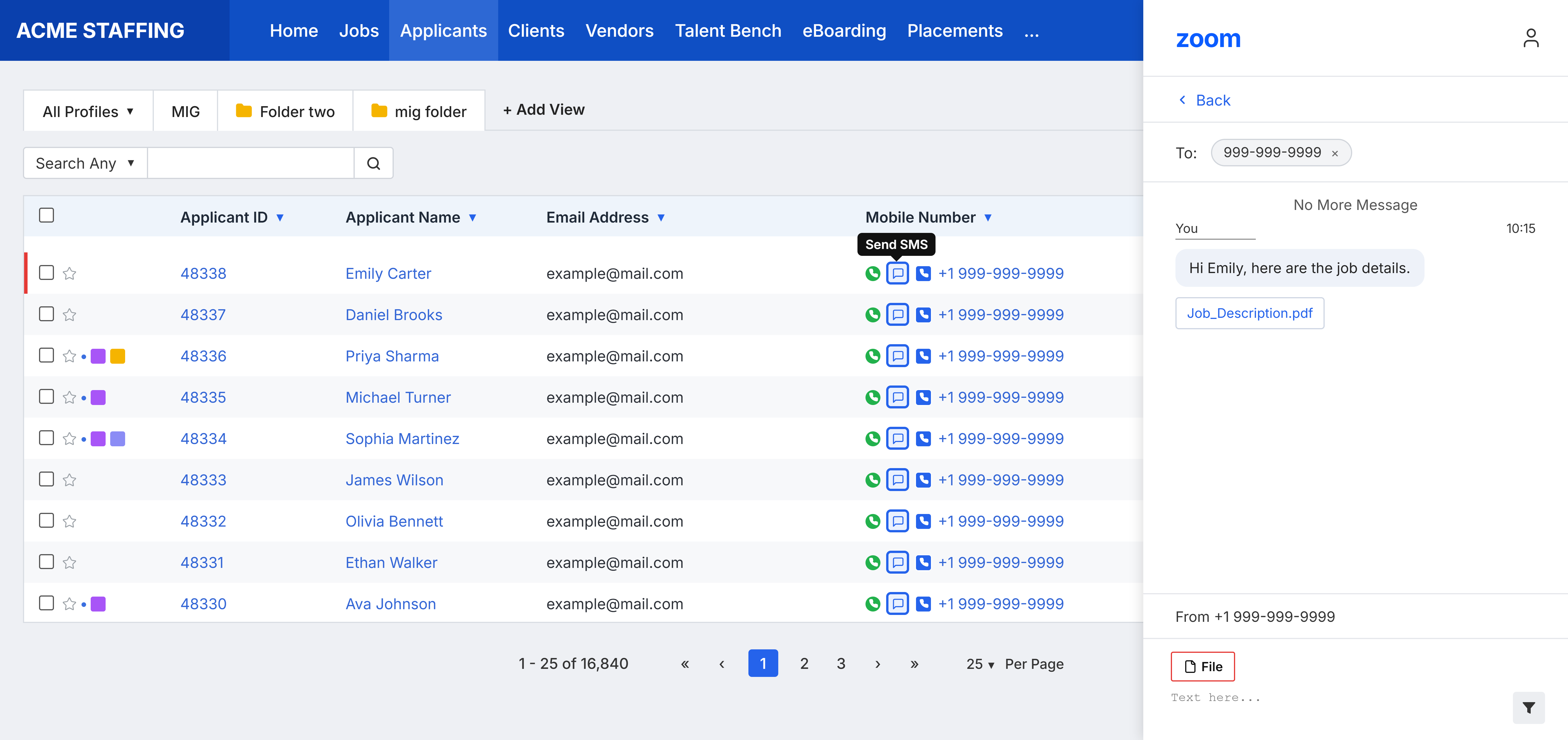
You can send SMS to Applicants, Client Contacts, and Lead Contacts.
Yes. Supported files can be attached when you compose the message.
Go to CEIPAL BI → General Reports → VOIP Call Logs History, then filter the VOIP Provider to Zoom Phone.
Where available, Ceipal captures the call date, type, status, duration, and who made the call.
An administrator needs to set up Zoom SMS under Setup → Integrations → All Integrations → SMS Integrations first.