The Indeed integration lets recruiters post jobs to Indeed directly from Ceipal ATS and receive applications back into the platform automatically — no manual re-entry, no switching tabs. Paired with Indeed Apply, candidates get a frictionless "Easy Apply" experience on Indeed, and your team gets a cleaner, faster pipeline.
Jobs using Indeed Apply receive on average 45% more apply starts and are 2.5x more likely to result in a hire, with access to Indeed's 610 million job seeker profiles across more than 60 countries. Jobs are marked with an "Easy Apply" label at no additional cost.
Availability
Roles
Admin
Permissions
Admin-level access
Before you begin
You'll need an active Employer account on Indeed. Make sure you:
Use your company name exactly as it's registered on Indeed
Have an email address associated with your company's Indeed Employer account
Have asked your Indeed representative to provide API access using your registered name, contact, and email
Prerequisites
Indeed Account Requirements
An active Indeed Employer account, with your company name matching exactly what's registered on Indeed
An email address on your company's own domain — not a personal domain like Gmail or Yahoo
Indeed's account and job posting guidelines must be followed during setup and publishing. Non-compliance can result in jobs being unpublished from both Indeed and your Career Portal.
Easy Apply Requirements
Easy Apply is enabled by default at the account level
If Easy Apply is disabled, candidates are routed to your Career Portal instead
Easy Apply must be enabled for any Ceipal-configured questionnaires to display to candidates on Indeed
Company and Job Requirements
The job must already be active on your Career Portal before it can be published to Indeed
Post Job on Career Portal must be enabled for the job
Sufficient credits must be assigned to the users who'll be publishing jobs to Indeed — without this, the Indeed publishing option won't be accessible
Job Visibility
Each job posted through the integration is expected to refresh on Indeed search results approximately every four hours
Setting up the integration
Admin
Integrations
Job Posting
Indeed
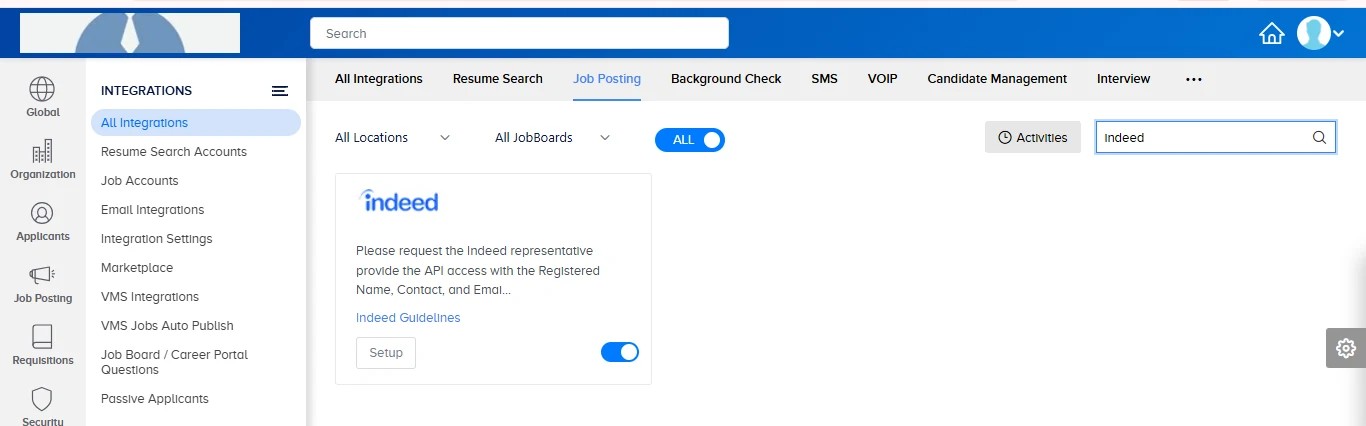
Select Setup on the Indeed card to add your account.
The Indeed card under Admin → Integrations → Job Posting.
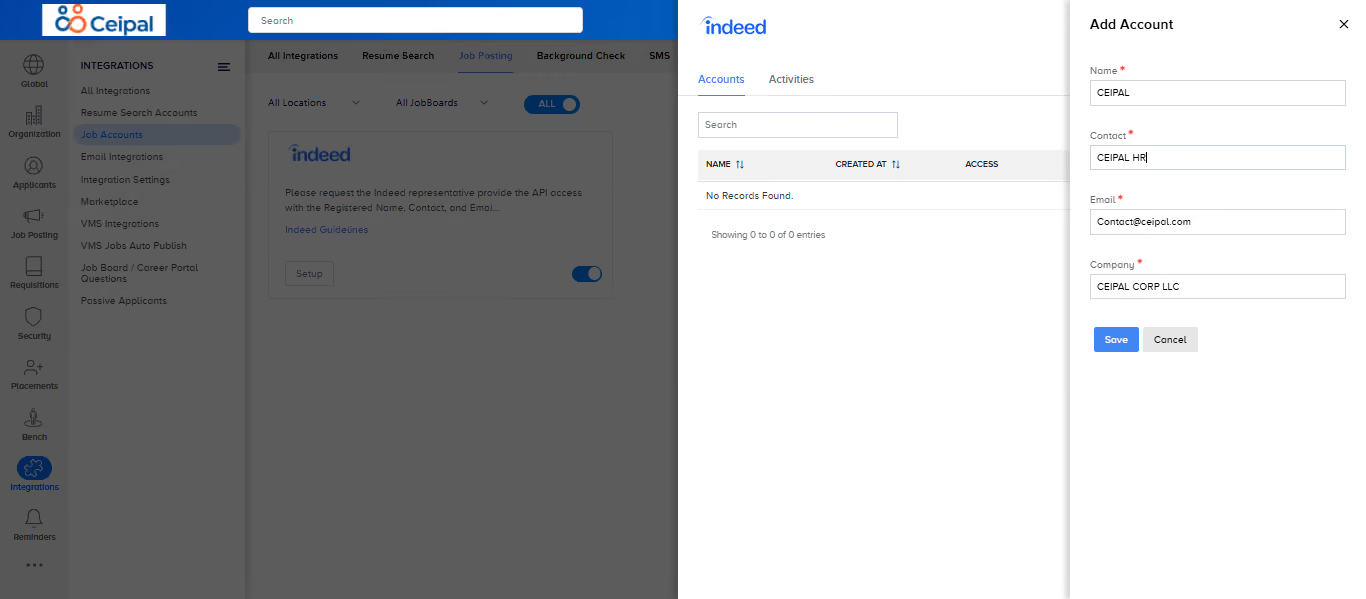
Under Account, enter your Name, Contact, Email, and Company details, then save.
Account details are used by Indeed to verify your employer record.
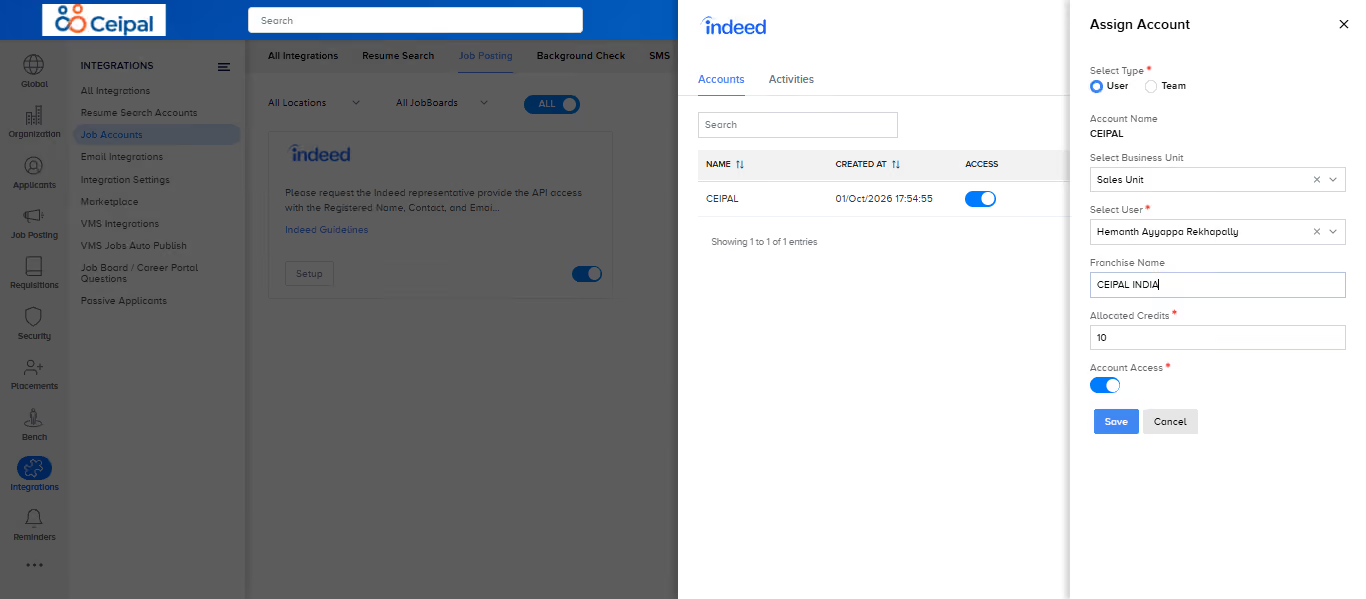
Assign the account to the users or teams who'll manage Indeed postings. If applicable, add a Franchise Name exactly as it appears in your contract.
Only assigned users can publish jobs through this account.
Admin
Integrations
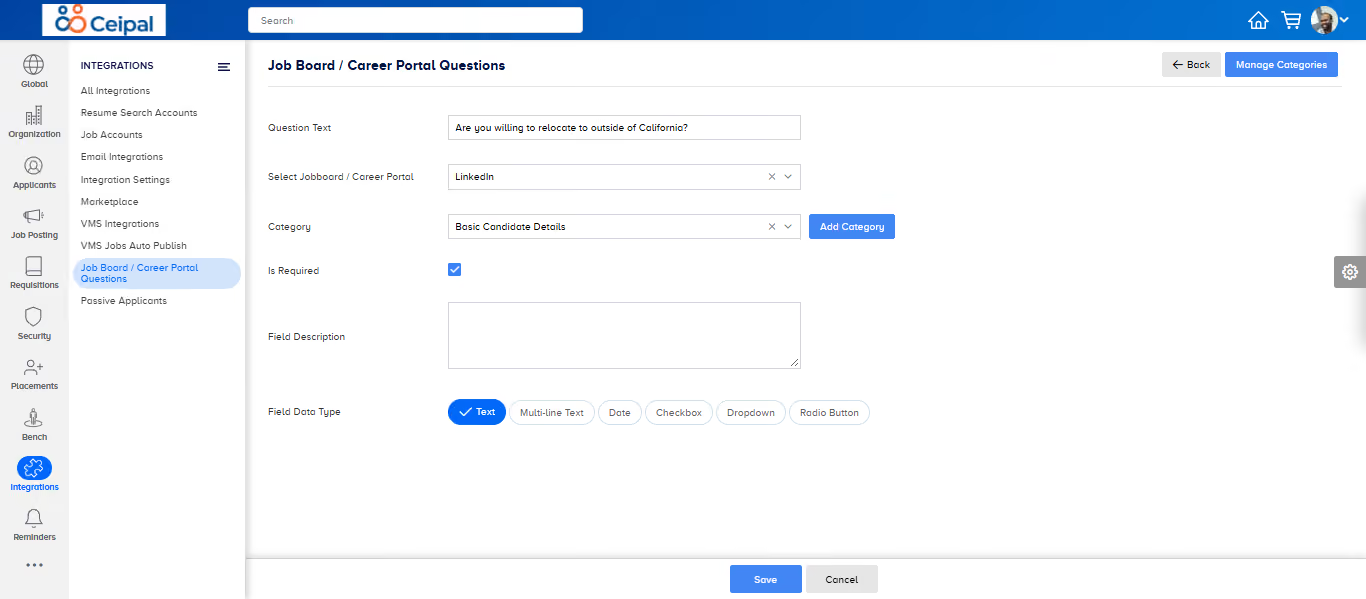
Job Board / Career Portal Questions
Optionally, configure screening questions here. They'll appear to candidates directly on Indeed.
Screening questions are optional and can be changed at any time.
Good to know. Indeed Apply ("Easy Apply") is enabled by default at the account level. If it's switched off, candidates are routed to your company's career portal instead.
Selecting a Questionnaire When Publishing a Job
Once a questionnaire is configured, it can be attached to a specific job at publish time.
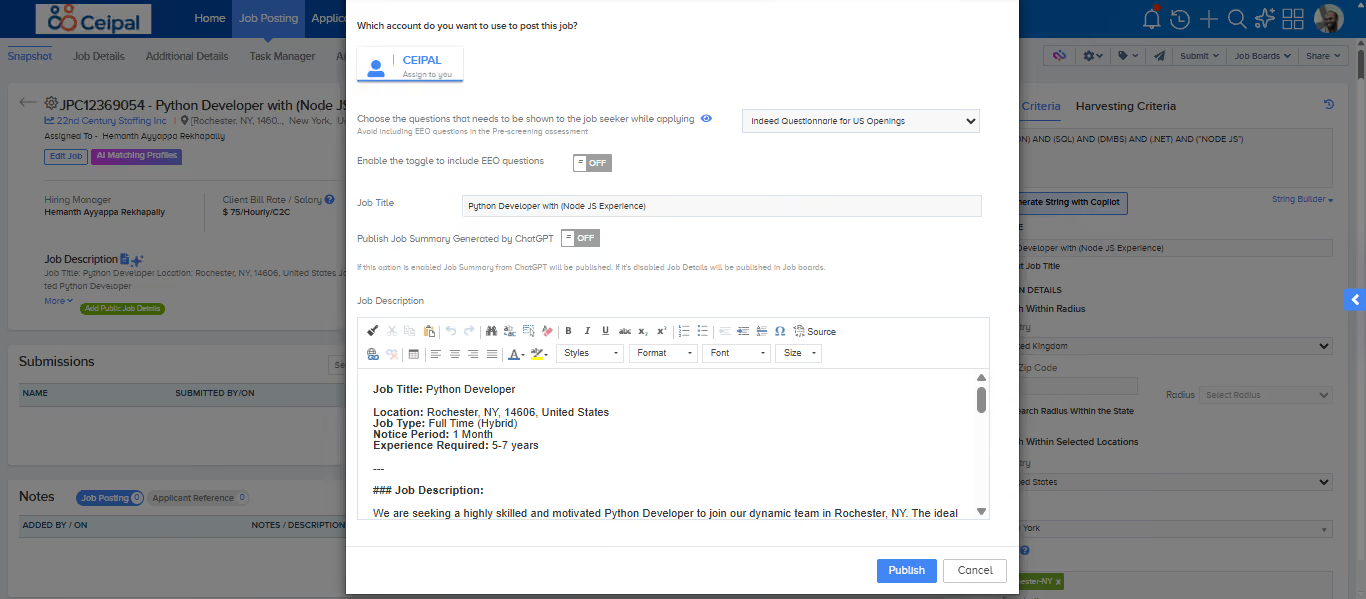
On the job, open Republish Job (or the job's publish screen). Under "Choose the questions that needs to be shown to the job seeker while applying," select the questionnaire you configured.
Select a configured questionnaire from the dropdown on the job's publish screen.
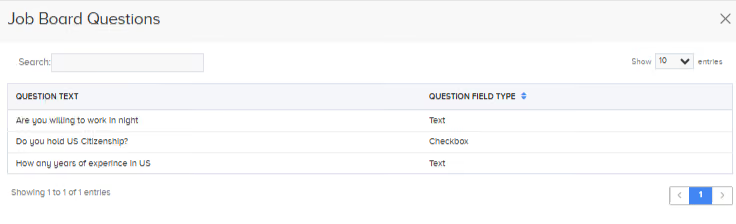
To preview or confirm which questions are attached, open Job Board Questions from the job — this shows the exact questions candidates will see.
Confirm the exact questions candidates will be asked before the job goes live.
Avoid including EEO (Equal Employment Opportunity) questions in the pre-screening assessment.
Re-enabling Indeed Apply after opting out
Indeed Apply is on by default. If you've previously switched it off and want to turn it back on:
Admin
Integrations
Job Posting
Indeed
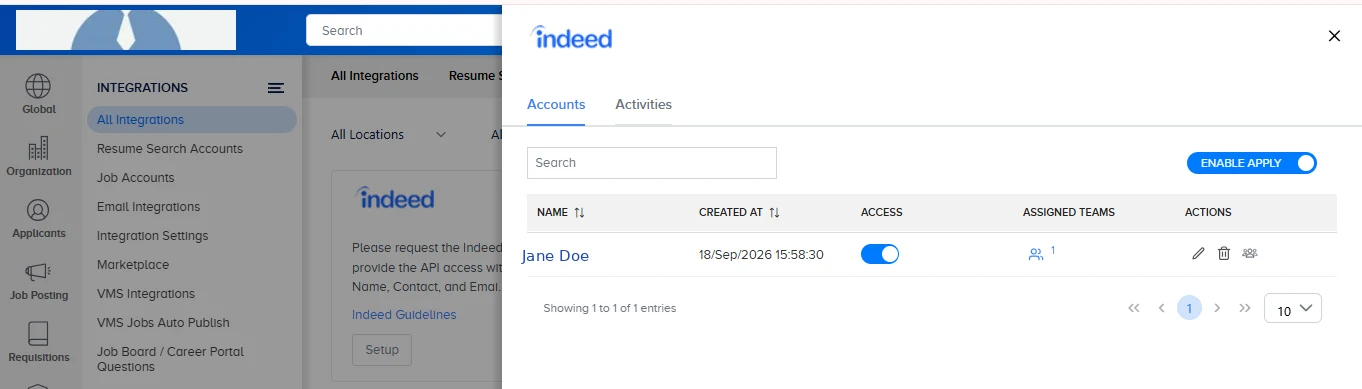
Accounts
Open your Indeed account.
Toggle Enable Apply back on.
The change applies to jobs published after the toggle is switched on.
Posting a job to Indeed
Job Posting
Select a job
Job Details
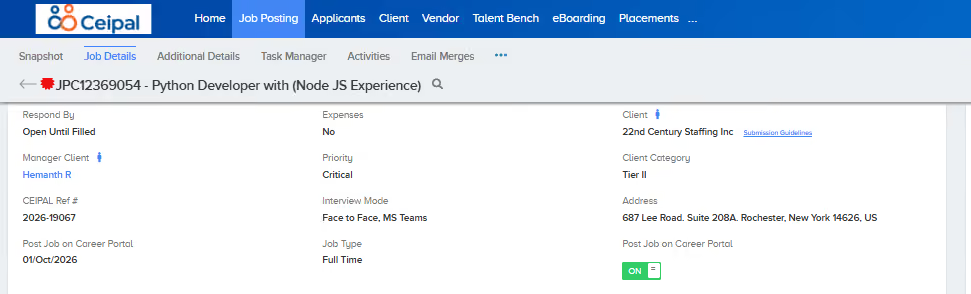
Switch Post Job on Career Portal to ON and save.
A job must be live on your career portal before it can be sent to Indeed.
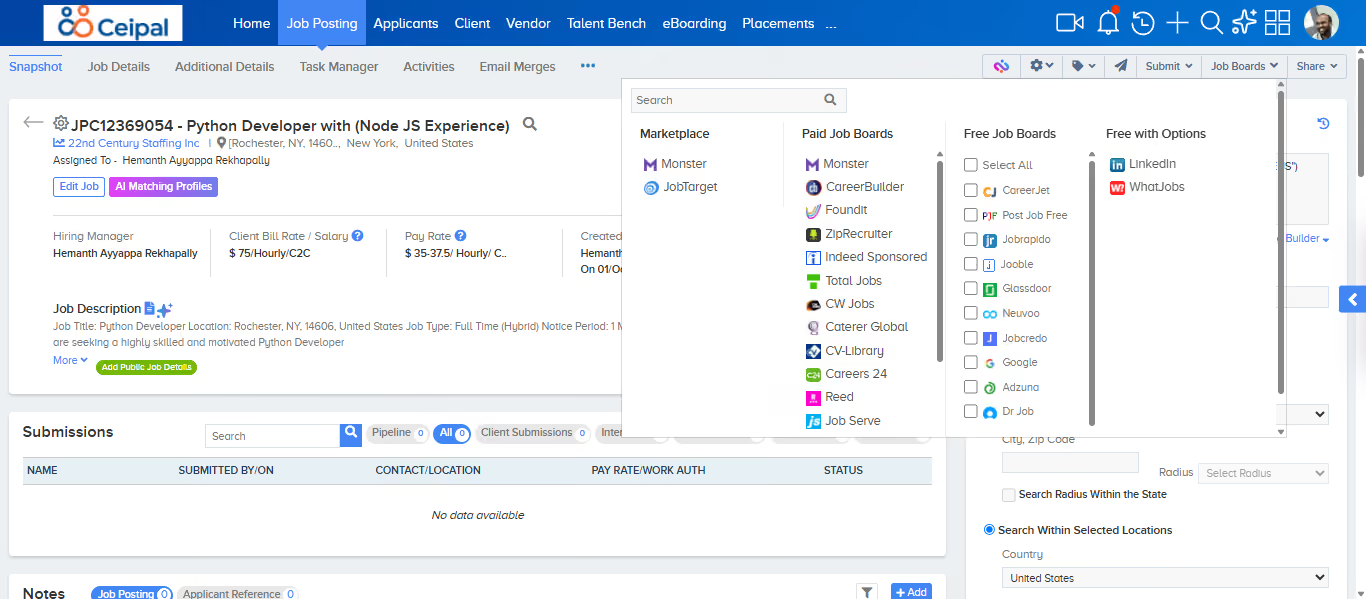
From the job's Job Boards dropdown, select Indeed Sponsored to publish it.
Publishing sends the job to Indeed for aggregation.
For a job to be aggregated successfully, it needs a complete job title, a clearly defined location, a unique posting URL, an effective description, and a clear way to apply. Meeting these doesn't guarantee aggregation — all jobs are subject to review by Indeed's Aggregation and Trust & Safety teams.
Indeed Publishing Guidelines
To ensure jobs are eligible for publishing on Indeed, they must first be Active on the Career Portal. Indeed evaluates those jobs and publishes only the ones that meet eligibility criteria. The rules below are validated automatically. If a job fails any mandatory criterion, the Career Portal Active flag is turned off.
Job Status Validation
The job must be in Active status. Any other status, including a change from Active, fails this check.
Location Requirements
Non-remote jobs must include complete location details (city, state, and other required information). Incomplete location fails this check.
Remote jobs are not subject to the same physical-location requirement.
Job Creation and Closing Date
The job must not be more than two years old, and its Closing Date must not have passed.
Pay Rate Requirements
Minimum pay rate must be greater than 0 and less than the maximum pay rate.
Pay rate fields must contain numeric values only. Special characters or text such as $, /hr, per hour, etc., will not be accepted.
Job Description Requirements
To be eligible for publishing on Indeed:
The description must contain more than 80 words and be between 500 and 20,000 characters.
Tables are not supported. Table formatting is removed automatically on publish. This does not fail the Career Portal Active check, but the content may not appear the same way on Indeed.
The following are not advisable in job titles. They do not fail the Career Portal Active check, but may affect the job's visibility:
Location information — city names, state abbreviations, or "Remote" included as part of the job title
Job type or schedule information — terms such as "Contract", "Full-time", "W2", "C2C", "Temp", or similar employment/schedule terminology
Promotional or urgency language — terms such as "Urgent", "Immediate", "ASAP", "Hiring Now", "Opening For", or similar promotional/urgency language
Excessively long titles — may negatively impact the job's visibility on Indeed
What to expect once it's live
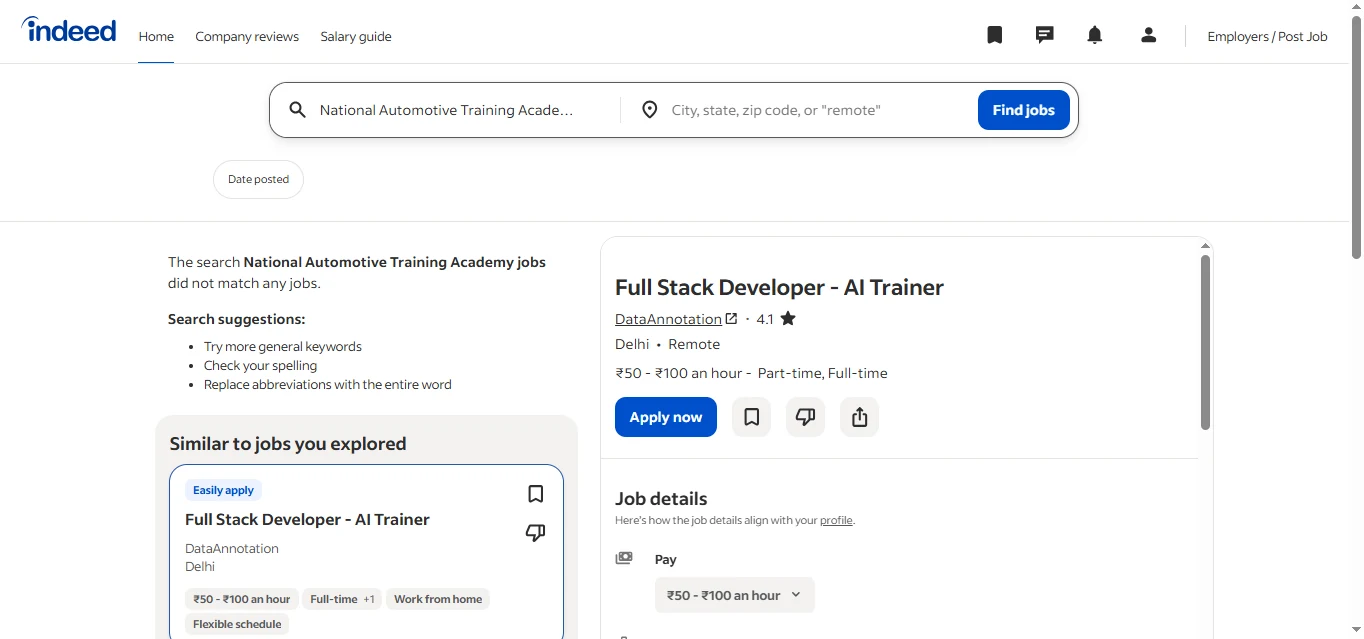
Jobs posted through the integration appear on Indeed with an "Easy Apply" badge, standing out in search results at no extra cost
Candidates can apply in a few taps directly from Indeed, including answering any screening questions you've configured
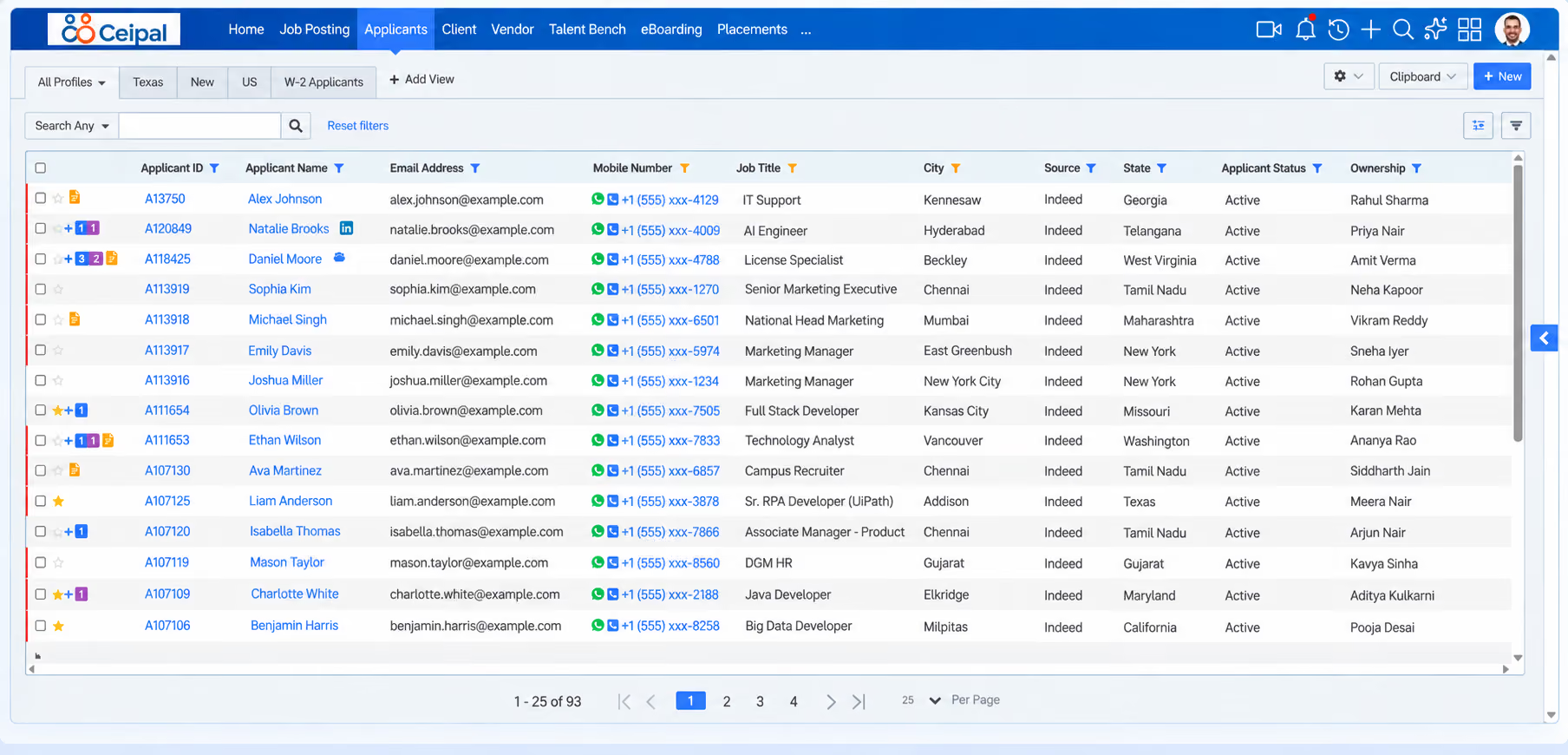
Applications, screening responses, and hiring-event RSVPs sync back into Ceipal ATS automatically
New applicants appear in your Applicants view, tagged with Source: Indeed
How the listing appears to candidates on Indeed.Applicants view, filtered to Source: Indeed.
Indeed Apply is fully mobile-friendly. Candidates can browse and apply to your postings from the Indeed app or a mobile browser with the same streamlined experience.
Frequently asked questions
Do I need a separate Indeed account for each recruiter?
No. One Indeed Sponsored Account is set up at the company level, and individual recruiters or teams are then granted access to it through Ceipal's account assignment settings.
Is there an additional cost to use Indeed Apply?
No. Easy Apply is included at no additional cost. Sponsored Jobs are a separate, optional paid option within the same integration.
What happens to applications if I turn Indeed Apply off?
Candidates are routed to your company's career portal to complete their application instead of applying directly on Indeed.